Choose Skip all for a task from a paired device
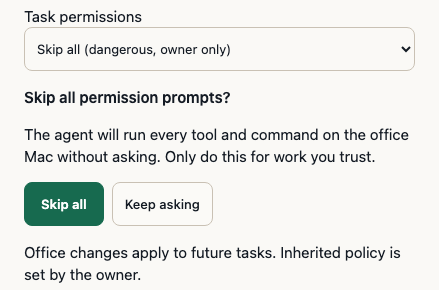
In beta 59, a paired owner device can choose Skip all for a new task, after an explicit confirmation.
What changed
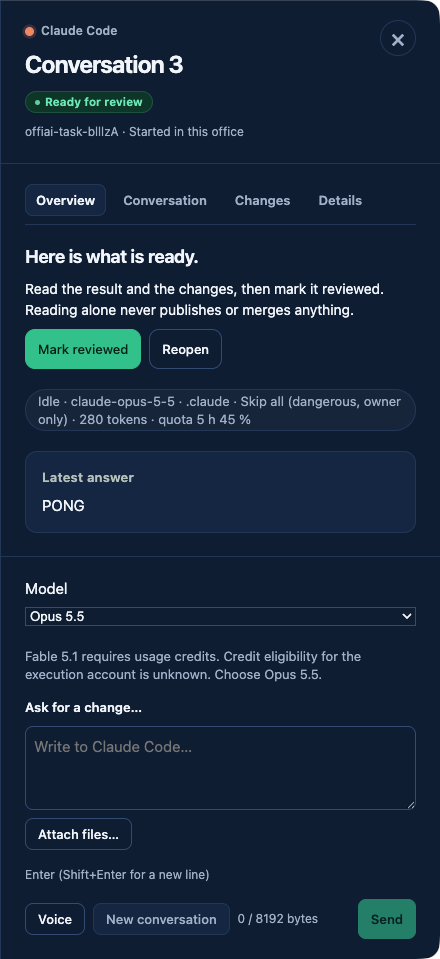
Before beta 59, Skip all could only be chosen on the office Mac. A paired device could only inherit it.
Now, when you start a task from Reception on a paired owner device, you can pick Skip all for that task. The app asks you to confirm first. Confirming applies it to that one task. If you cancel, your previous choice stays.
How to use it
On your paired device, open Reception, write the brief, and choose Skip all as the task’s permission mode. Read the confirmation and confirm it. The task then starts without asking for permission at each step, so only use it for work you trust.
Current limits
From a paired device, saving Skip all or Full bypass as the office default in Settings › Task permissions does not work yet: the app shows “Change was not saved: Preferences could not be saved.” Set the office default on the Mac itself for now. Pressing Escape on the confirmation closes the whole sheet instead of only cancelling. Approving Codex permission prompts from a paired device is not supported yet; answer those on the office Mac. These are to be fixed next.
Want to try it? Join the preview.
In pictures