
Beta 42: a Voice button that types your words with macOS Dictation
Beta 42 adds a Voice button to type your messages with macOS Dictation and turns on formatted replies with charts at local desks. The public roadmap describes it as: “A Voice button that types your words with macOS Dictation, and replies formatted with headings, tables, code and small charts.”
What changed and how to use it
You can now use your voice in message boxes. A new “Voice” button sits before Start in New task and before Send in Talk. It asks macOS Dictation to type your words into the box, and never sends. Sending your message remains a separate action.
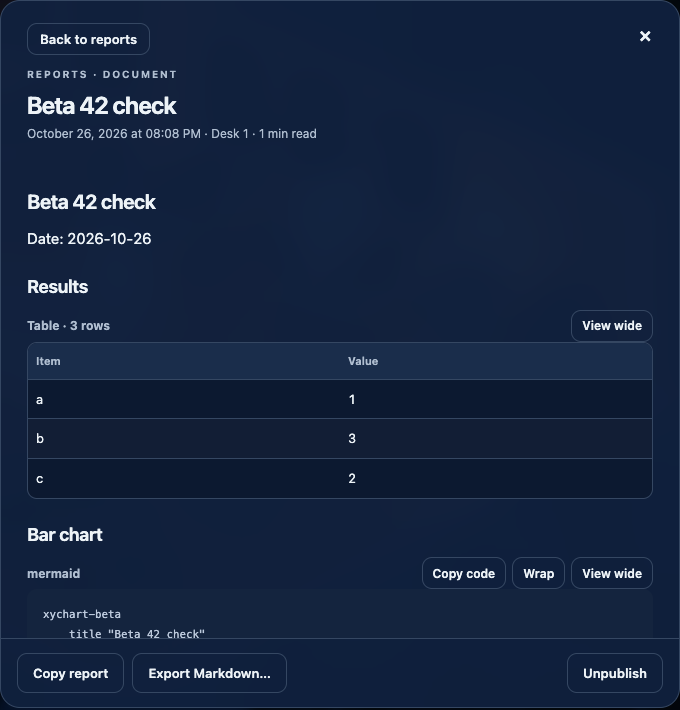
Replies from agents at local desks are now formatted by default. You will see headings, lists, tables, and code labeled with its language. Wide tables keep “Open wide”. Links still ask before opening, and secrets stay masked inside tables, code, and charts. When an agent answers with a small block of label and number rows marked bar or line, the reply shows a chart, with “Show data” for the numbers behind it.
If you prefer plain text, you can set “Formatted replies” to Off in Settings, right next to the archive options. If you had already chosen Off, it stays off.
Current limits
Voice input requires macOS Dictation on a real Mac. On computers other than Macs, Voice stays visible but greyed out and says “Voice input needs macOS Dictation.” On test launches on a Mac, it shows that message after the first press. If a voice request fails to start, the app informs you that it could not start and lets you try again.
Want to try it? Join the preview.