
Alerts when any agent finishes, gets stuck or needs you
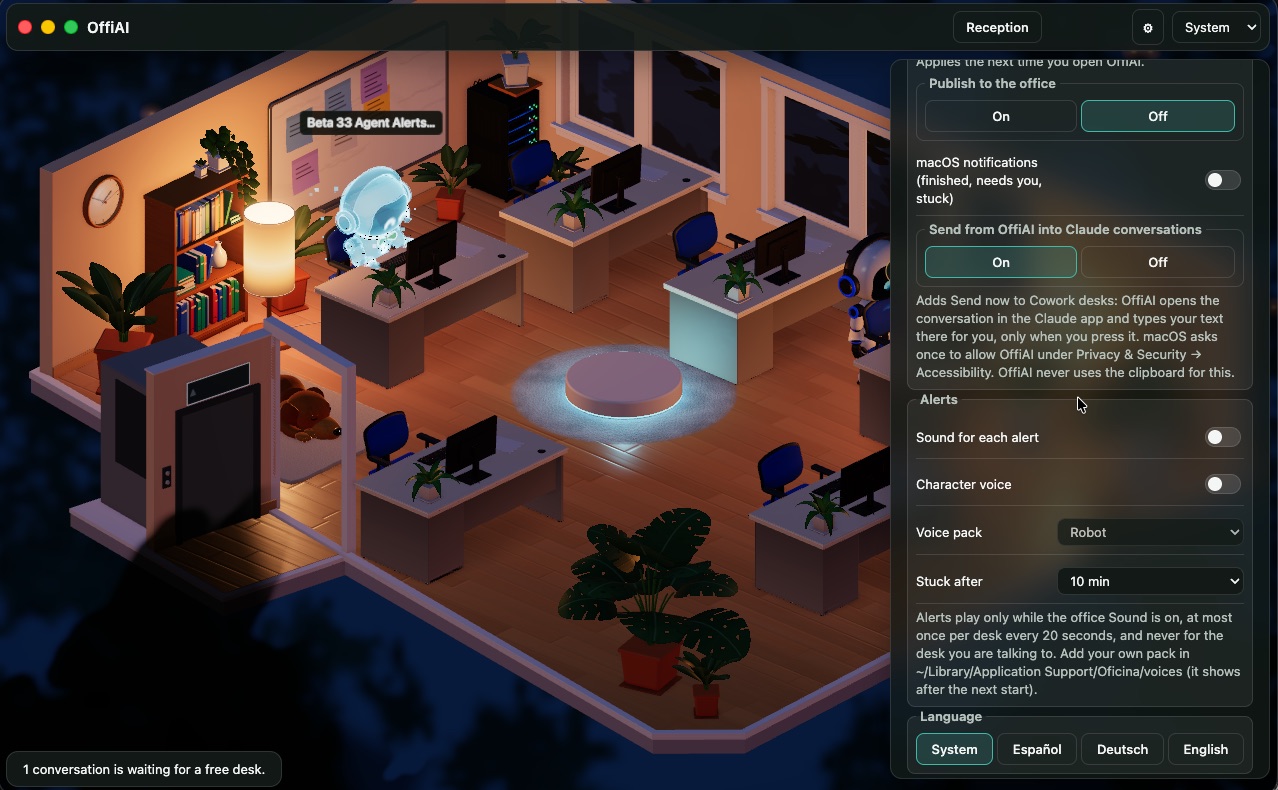
Beta 33 adds alerts when any coding agent finishes a turn, waits for you, or gets stuck. You can now get macOS notifications, sound tones, and character voice clips across your desks.
What changed
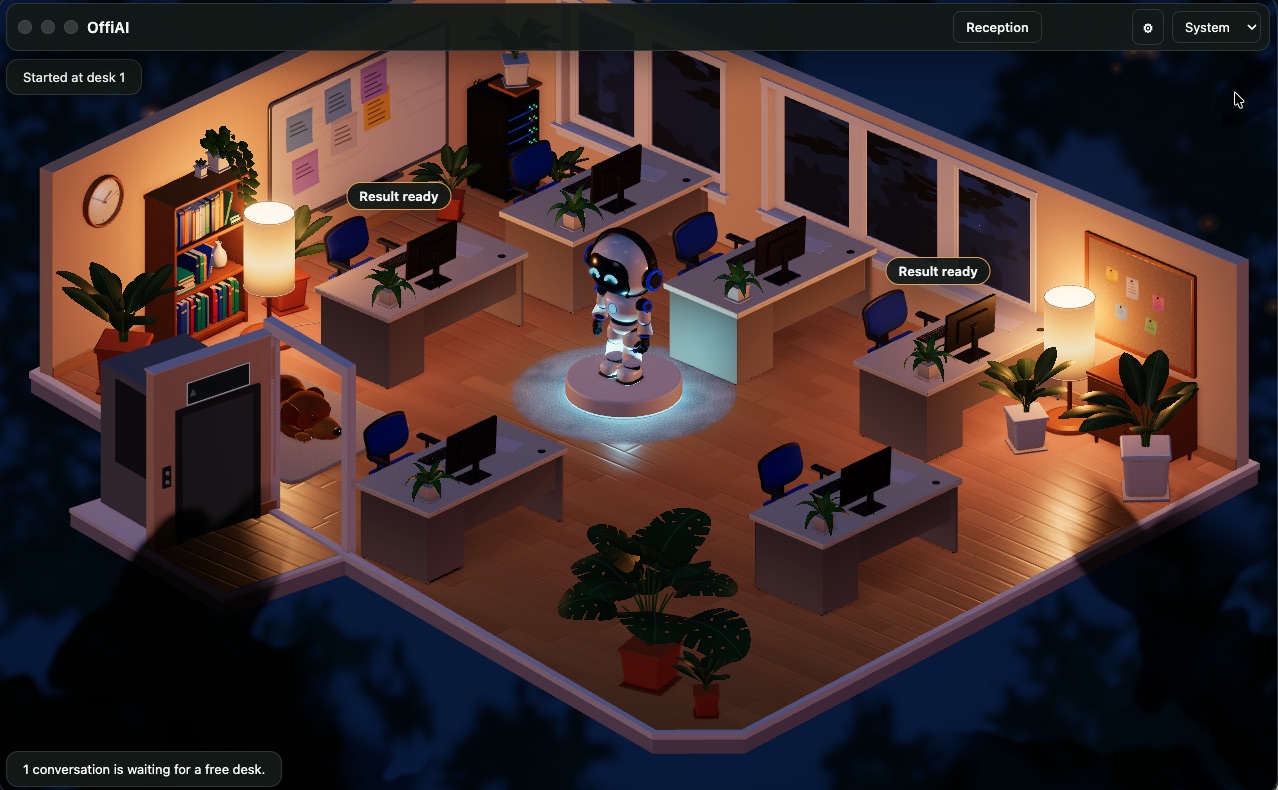
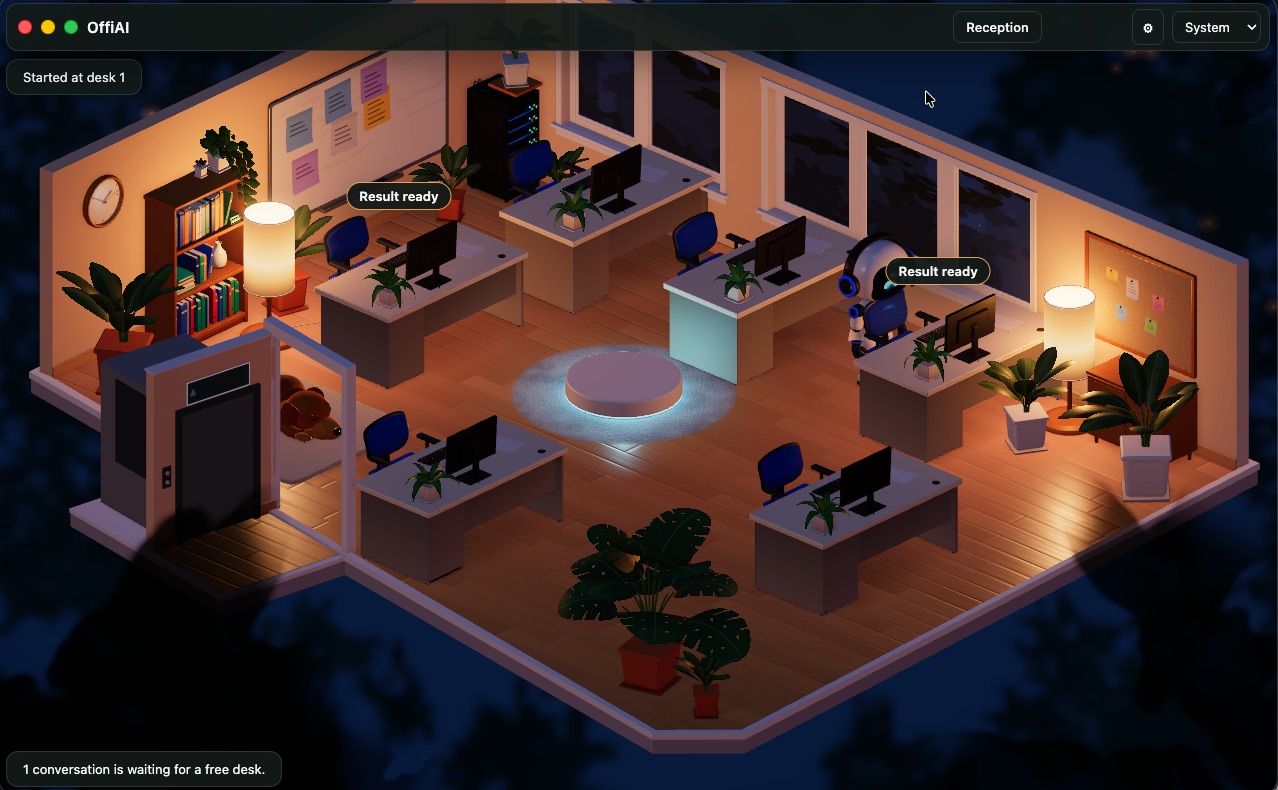
Previously, OffiAI only showed an in-app “Result ready” chip and an optional notification when a turn finished. If an agent waited for you or hung without progress, nothing reached you when the app was in the background, and nothing was audible.
Now, one alert model covers Claude Code, Cowork, Codex, and Gemini. OffiAI raises an alert when a turn finishes, when a desk waits for your input, permission, or approval, and when an agent fails or runs without progress. To protect your privacy, the macOS notification reads “OffiAI · desk N” with the event and the masked title, never the answer. A desk titled only by its folder is named by its family.
How to use it
Every alert channel except the in-app “Result ready” chip is off by default.
The macOS notification is turned on at Agents → “macOS notifications (finished, needs you, stuck)” in Settings. Clicking a needs-you or stuck notification opens that desk’s Talk drawer (or keeps it open and reloads it), while clicking a finished one opens the answer.
In Settings → Alerts, you can turn on a per-event sound tone, enable character voices, pick a voice pack (the built-in Robot pack or your own packs, marked “yours”), and set the “Stuck after” minutes (default 10). This screen is available in English, Spanish, and German. Audible alerts play only while office Sound is on. The limit of one alert per desk every 20 seconds applies to audible alerts only. The desk whose Talk drawer is open in the focused window gets no alert at all, the finished-turn notification included.
To add your own voice pack, put a folder with three short clips (finished, needs you, stuck) and a small description file into OffiAI’s voices folder in your app data, restart OffiAI, and pick the pack in Settings → Alerts; the format is described in the app’s docs.
Limits
A stuck alert only fires after the number of minutes you set (“Stuck after”, default 10), and a voice clip that cannot play falls back to the tone.
In pictures
Want to try it? Join the preview.