
How to run Claude Code, Codex and Gemini side by side without losing track
Running one AI coding agent in one terminal is easy to follow. Running Claude Code, Codex and Gemini at the same time, a few sessions each, is not. The agents do their work well enough. The trouble is knowing, at any moment, which one is working, which one is waiting for you and which one finished an hour ago.
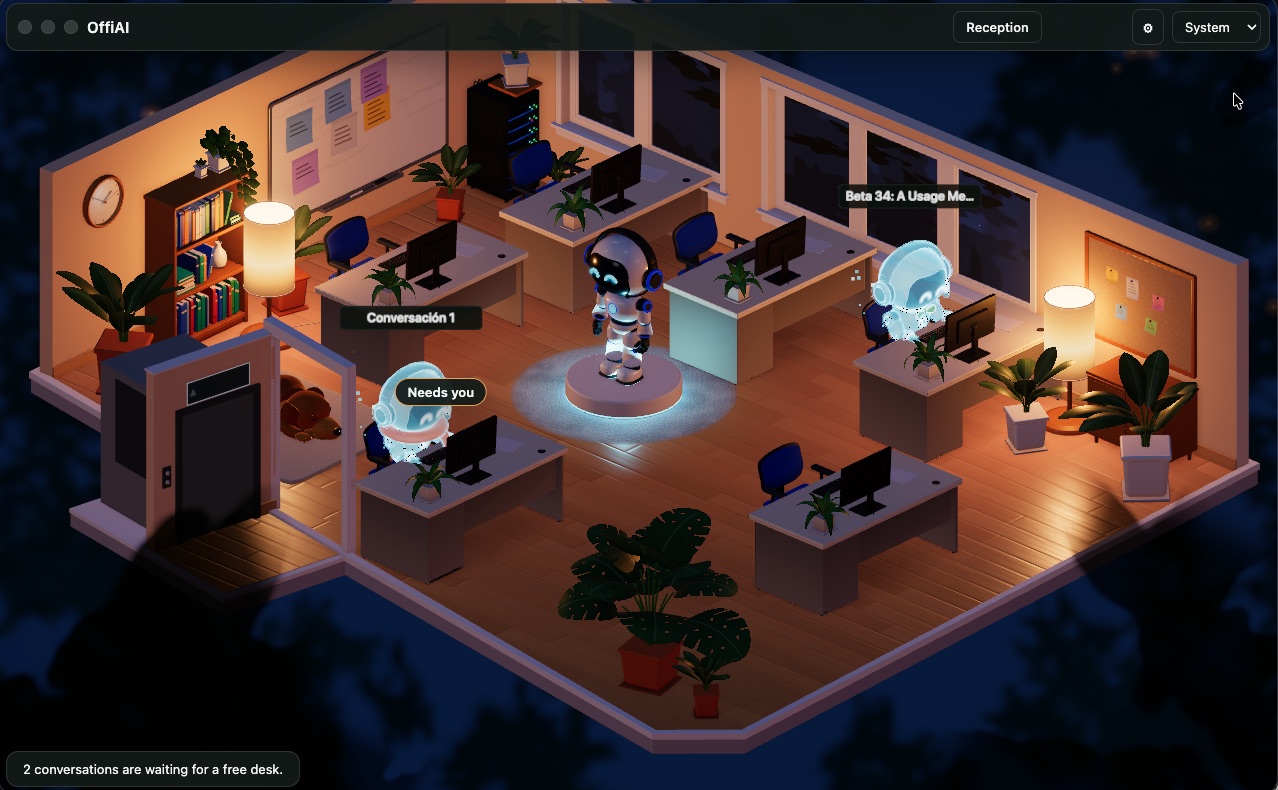
This post describes the way we keep track of that with OffiAI, a free macOS app we make at Delicatino GmbH. It shows what exists today, and where the edges are.
The problem with tabs
Each agent lives in its own terminal tab or window. To find out where a session stands you click through tabs and scroll back through output. Every check costs a little attention, and with enough sessions you stop checking. A session then sits on a question for twenty minutes.
A terminal shows one stream of text well. It was not designed to show the state of six pieces of work at once.
One session, one desk
OffiAI gives every active session a desk in an illustrated 3D office. A desk is one agent session with its own conversation, so sessions stay separate. A glowing desk means the session is working there or waiting for you. A provider badge in the desk panel tells you whether it is Claude Code, Claude Cowork, Codex CLI or Gemini.
OffiAI finds the sessions without much setup:
- Claude Code: nothing to install. OffiAI reads the session files Claude Code keeps on your Mac.
- Codex CLI: run one small installer, approve its hooks once, and each Codex session appears with your first prompt.
- Gemini (Antigravity CLI): sessions appear without an install.
- Claude Cowork: connect it through the OffiAI plugin for the Claude desktop app.
Every agent keeps its own tools and its own subscription. OffiAI runs no model of its own; it is where the work is organised and visible. The install guides are at offiai.app/install.
Start work from one place
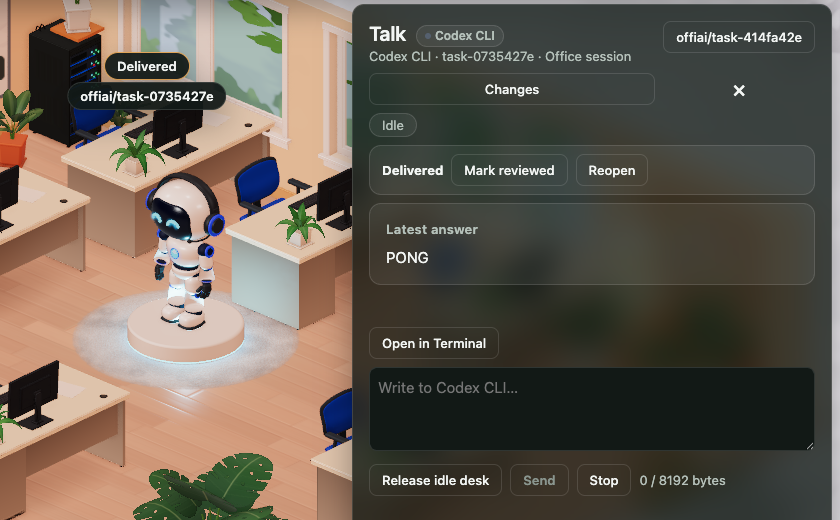
At Reception you click the pad, pick a working folder, write the task and choose the agent. Since beta 40, Reception can start Claude Code, Codex and Gemini when they are installed, and Reception shows the version it found for each. The agent runs in the folder you chose, its answers appear in the desk’s Talk drawer, the job ends as Delivered, and you reply from the same drawer.
Sessions you start yourself in a terminal still get a desk. Claude Code sessions you can read and answer from the app; Codex and Gemini sessions you start in your own terminal are shown read-only.
Know when something needs you
Alerts cover all four agents with one model. OffiAI can alert you when a turn finishes, when a desk waits for your input, permission or approval, and when an agent fails or runs for a set number of minutes without progress (10 by default, and you can change it). You choose the channels: a macOS notification, a sound tone, or a short character voice. All of them except the in-app “Delivered” chip are off by default. The notification shows only the desk, the event and a masked title, never the answer.
What this does not do
We would rather you hear the limits from us:
- Messages to Codex and Gemini from a desk are one line, and a message starting with “/” or “!” is refused, because the agent would run it as a command.
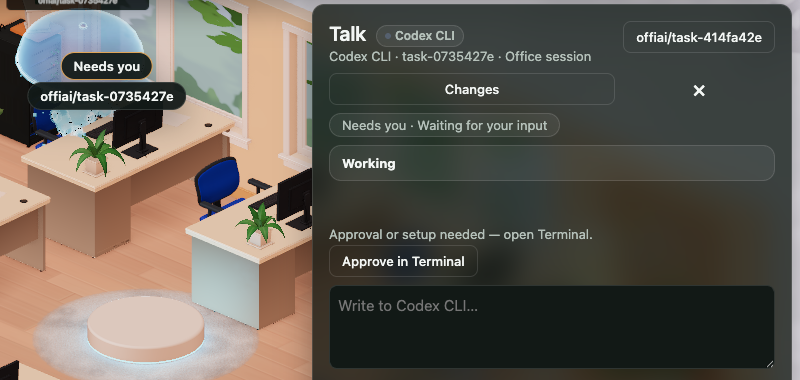
- Codex and Gemini ask for approval in their own terminal. The desk says “Approve in Terminal” and offers “Open in Terminal”.
- Claude Code 2.2 is not supported yet.
- OffiAI is for Macs with Apple silicon, and it is a public preview that changes often. Every build is in the changelog.
Try it
It is free, has no account and no OffiAI server. Download it from the release page, or read how it works at offiai.app.
In pictures
Want to try it? Join the preview.