
Allow network drives and protected folders once
Starting in beta 55 on 30 October 2026, your desks can work on network drives, USB disks, and protected folders after you grant permission once in macOS System Settings. These permissions persist across agent updates, and desks now explain clearly when macOS blocks a step.
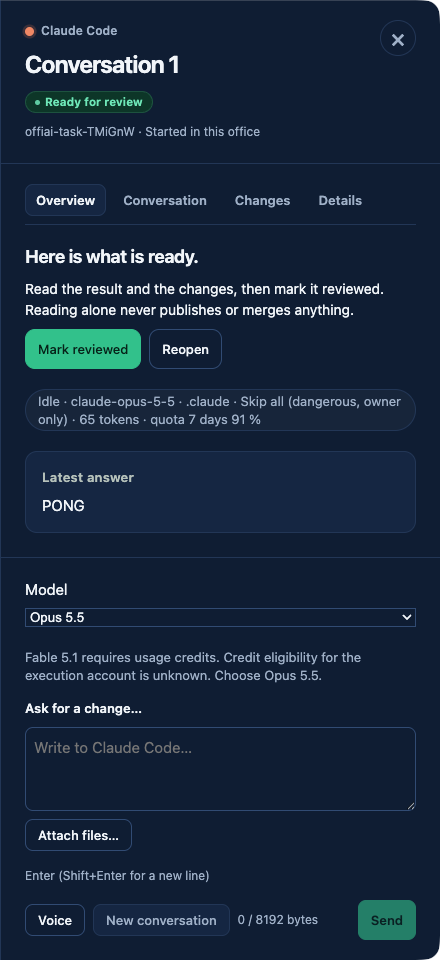
What changed
Previously, macOS permissions disappeared every time an agent updated. A desk accessing a network volume or protected folder could hang or stop with an error message saying talk is not available.
Now, macOS grants permission directly to OffiAI. A single approval stays valid through Claude and Codex updates, letting your desks access network volumes, removable volumes, Desktop, Documents, Downloads, and Full Disk Access without losing access.
How to use it
When macOS blocks a step, the desk does not get stuck. It shows a “Needs permission” chip, the path, and the missing permission. To resolve it:
- Click the provided link to open the exact pane in macOS System Settings.
- Turn on access for OffiAI.
- Return to the desk and click Retry.
You can also check your setup in app settings under Permissions. Probes settle within three seconds to show whether each service is Allowed, Not allowed, or Unknown, and offer exact links along with a Check again button. If a protected network tool stalls for 30 seconds, the desk shows a soft waiting line on the path instead of a denial. These soft lease waits never send a notification.
Current limits
This update does not yet offer deep-link buttons on remote office or phone views. Those screens show the path and instructions for the Mac owner, but you must open System Settings directly on your Mac. In addition, when an operation fails for an unknown reason, the desk still falls back to a generic error message.
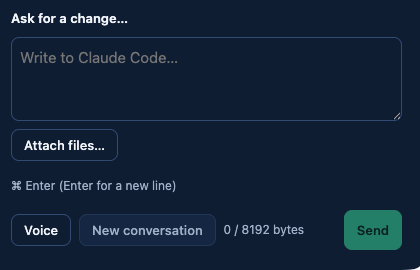
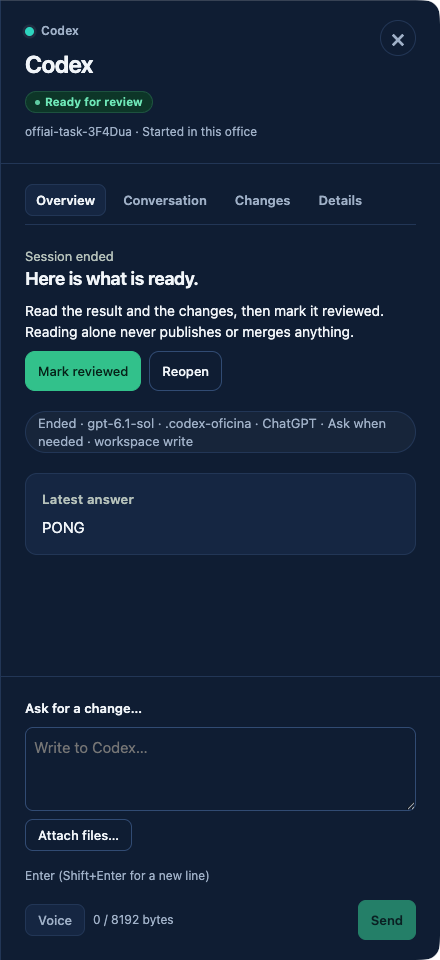
In pictures
Want to try it? Join the preview.