Beta 66: on a paired device
Beta 66 shipped on 31 October 2026 and updates how permissions work on a paired device. Confirming Skip all or Full bypass now saves your office default, while pressing Escape cancels just the question and returns you to the previous choice.
Where to find the changes
You can see these updates when using OffiAI from a paired device.
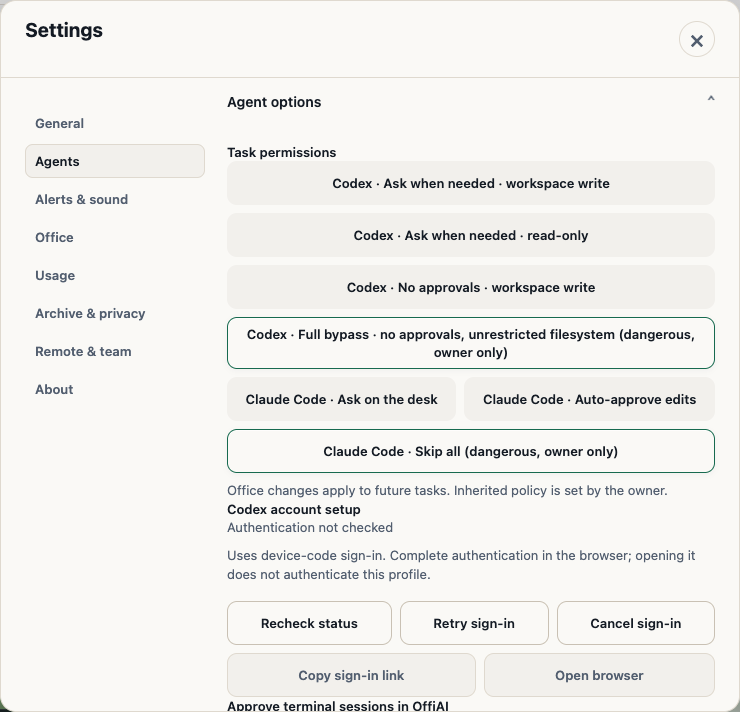
In Settings, look for the permission options to select Skip all or Full bypass. When you confirm your selection, the choice saves through the mounted remote client and paired host as your office default.
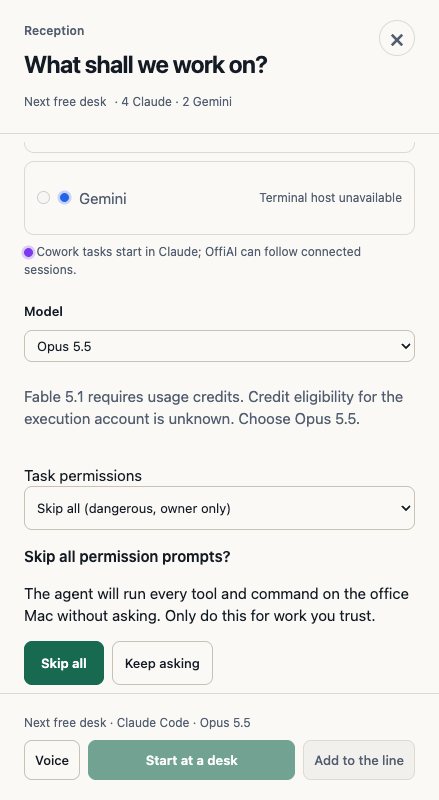
In Reception, you can also choose these elevated modes. If you see the confirmation prompt and change your mind, you can press Escape: - In Reception, Escape cancels only the confirmation and restores choice and focus. - In Settings, Escape preserves its default and returns focus.
These confirmation prompts work across remote desktop and phone screens, in both themes, and in English, Spanish, and German.
Queueing and activation limits
There is an honest limit to keep in mind before you run tasks: - Starting or queueing waits until you answer the question, on desktop and phone. - A pending confirmation blocks Start and Add across refresh and attempted activation. - If an elevation stays unconfirmed, it remains refused and defaults stay unchanged.
You must answer the confirmation prompt before the app lets you start or add to the queue on desktop or phone.
Want to try it? Join the preview.
In pictures