
Right-click any part of the office to report what looks wrong
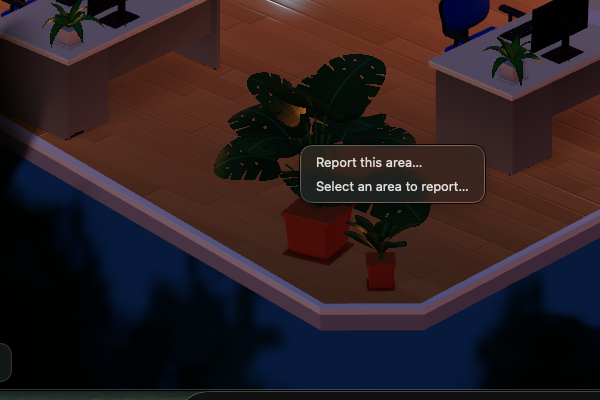
Beta 48, released on 29 October 2026, adds an in-app reporting tool to OffiAI. You can now right-click any part of your office to report visual issues, complete with an automatic screenshot and interface details saved on your Mac.
What changed
When something looks wrong in your office, you no longer need to capture and crop images by hand. Every report is saved on your Mac inside OffiAI’s own reports folder, storing a screenshot of the window, a screenshot of the area, and the view, desk and element details. In addition, right-clicking a text field shows Cut, Copy, Paste and Select All, and they act on that field.
How to use it
Right-click anything in the office that looks off and select “Report this area…”. You can also right-click, hold, and drag across the screen to highlight an exact area.
You can add an optional note and click Send. The app saves: - A screenshot of the window. - A screenshot of the area. - The view, desk and element details.
If you are the office owner, you can also have reports drop into a folder of your choice automatically. In Settings, go to “Owner reports also go to folder:” and click “Choose…”. In beta 48, that folder receives a short summary file per report; the screenshots stay in OffiAI’s own reports folder.
Limits
In beta 48, with the new interface turned on, the note sheet (“What looks off?”, Send) may not appear on screen after “Report this area…”, so the report cannot be sent with the mouse. A fix is planned for the next beta.
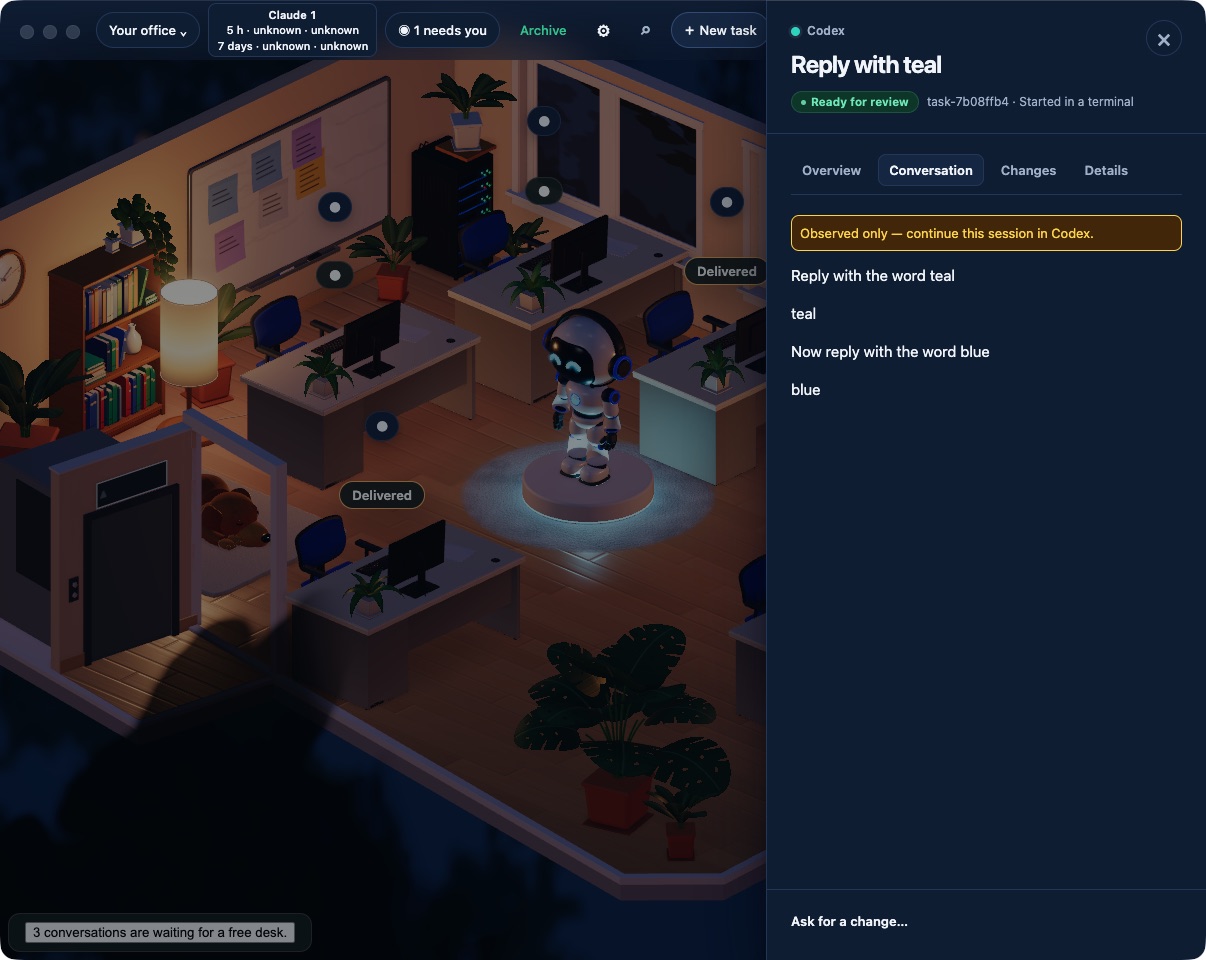
In pictures
Want to try it? Join the preview.