
Start every task on its own branch
If two agents work in the same Git checkout, they will eventually edit the same file or trip over each other’s half-finished changes. The usual fix is a Git worktree: a second working folder on its own branch. It works well, and it is tedious to set up for every task.
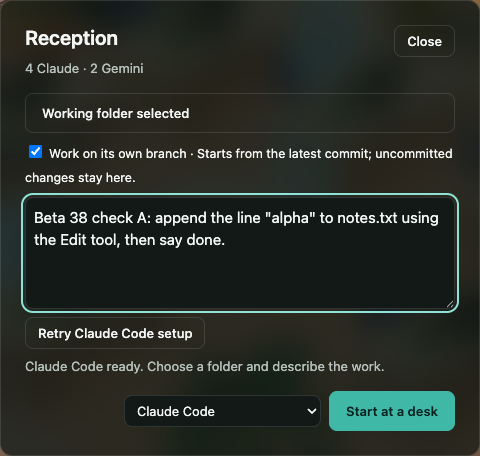
OffiAI does it for you, by default, when you start a Claude Code task at Reception.
What happens at Reception
You pick a folder and write the task. If the folder is a Git repository, the dialog shows a switch, “Work on its own branch”, turned on. When you press Start, the task begins from the latest commit, on a new branch, in its own working folder inside the repository. Your uncommitted changes stay where they are, and your main checkout is not touched.
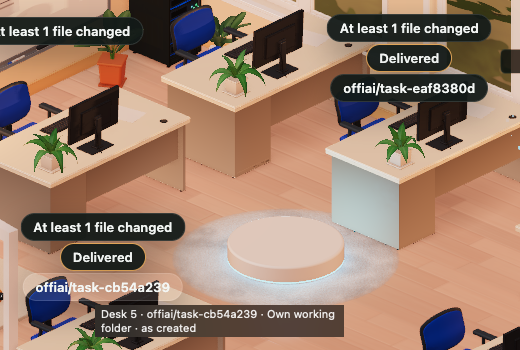
Two tasks in the same repository get two separate branches and two separate folders. Neither agent sees the other’s edits. If you prefer the shared folder, switch it off before Start and the app works as it did before. A folder that is not a Git repository keeps the shared flow.
OffiAI will not start in a repository it considers unsafe, and it does not run Git helpers from the repository’s configuration.
Seeing the branch
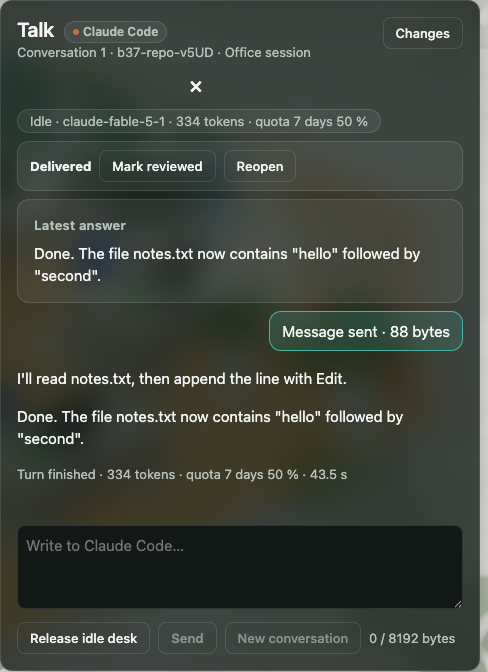
The desk and its hover label show the branch name, so you know which desk is working where. The Talk drawer notes which desks share a repository.
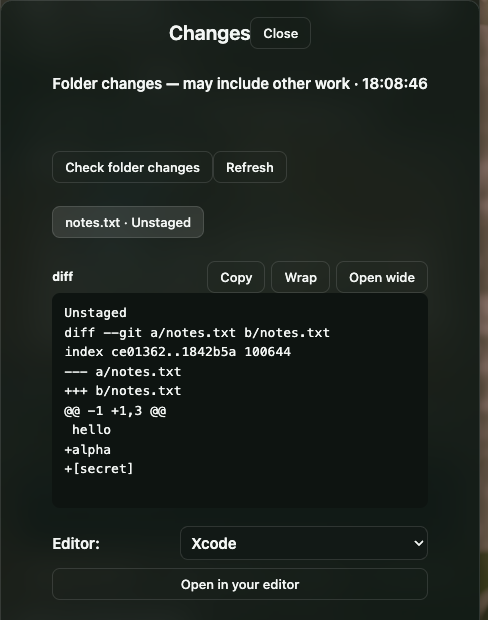
The Changes view reads the task’s own folder. It lists the files the agent touched, shows each diff safely with secrets masked, and offers “Open in your editor” with the editor you choose in Settings. Nothing runs until you click. The view checks the current state of the folder when you ask. Git does not say which agent made a change or what was committed earlier, and OffiAI does not claim to know.
Review, then decide
The agent delivers; you decide. A finished job ends as Delivered. You review it and mark it reviewed or done yourself, in the Talk drawer or in the Archive. The app never does that for you. A job that is waiting for your review keeps its desk until you decide, and when every desk is busy the app says so instead of replacing one.
Finishing: keep or remove
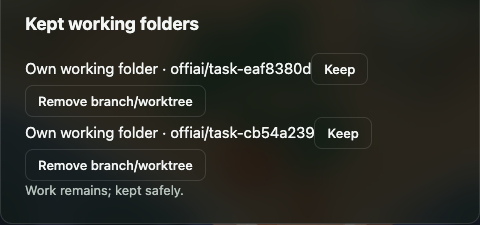
When you are done, the working folder is kept. The Talk drawer lists it under “Kept working folders”, where you choose Keep or Remove. Remove works only when nothing would be lost: if the branch has any tracked, untracked or ignored work in it, the app says “Work remains; kept safely.” After a removal it says “Branch and working folder removed.” If a kept folder has disappeared from disk, the app says so and offers Forget.
You then merge the branch the way you normally do. OffiAI does not merge for you.
Limits
- This article describes Claude Code tasks. Since beta 40, Codex and Gemini tasks started at Reception can also run in their own branch folder when the switch is on.
- Attached files are copied into the task’s own working folder, so the agent can read them there.
- OffiAI is a Mac app for Apple silicon, in public preview.
Try it
It is free, and there is no account. Download it from the release page, and see every change in the changelog at offiai.app/changelog.
In pictures
Want to try it? Join the preview.