The classic interface switch keeps focus and place in Settings
Beta 72 of OffiAI shipped on 31 October 2026. When you switch between the classic and new interface in Settings, the switch keeps keyboard focus and stays where you were in the panel, while your phone always keeps the new interface.
What changed
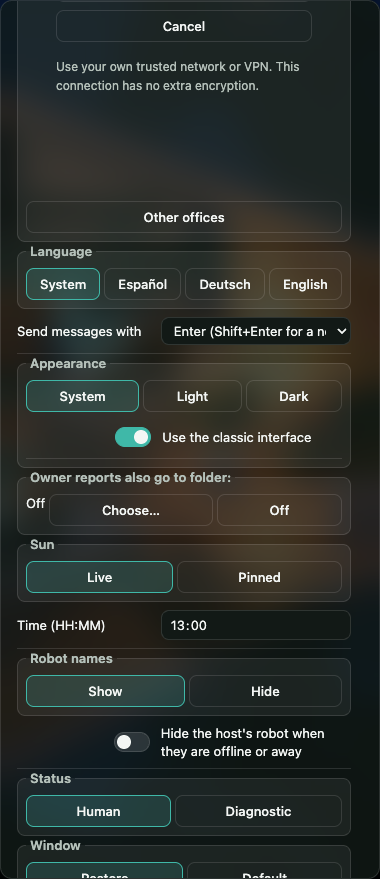
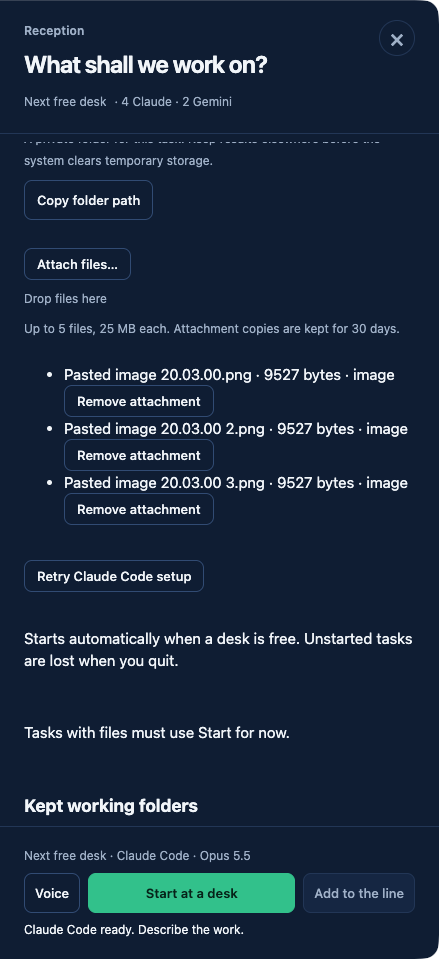
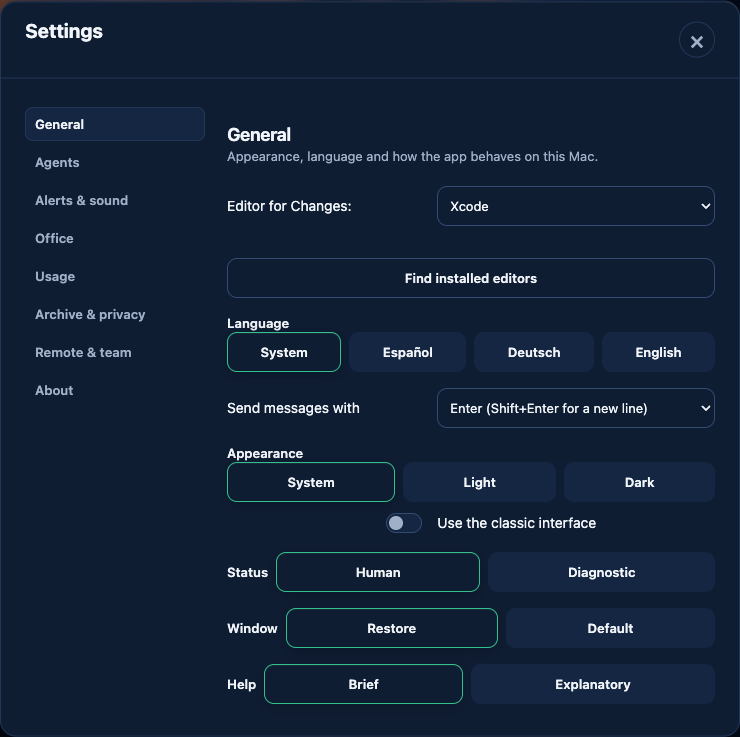
When you switch between the classic and the new interface in Settings, the switch keeps keyboard focus, its scroll offset, and stays on the General section through both interface swaps in English, Spanish, and German. If a save is refused in Settings, the app restores the saved choice. Your phone always shows the new interface, which is designed for small screens. Your Mac and remote office still follow your classic or new choice. Pasting several screenshots at the same instant now reserves unique names and keeps every screenshot, up to the 5-file limit.
How to use it
Open Settings and switch between the classic and new interface. The panel keeps your position and keyboard focus. Your phone shows the new interface automatically. When you view your office on a phone at 390×844, your phone keeps the new top bar while the host interface is classic. Desktop width restores the host choice and phone presentation edits stay device-only.
Limits
You can paste several screenshots at once, but the app limits you to five files. If you paste more than five files at the same instant, the app refuses the batch and shows a message with the count.
Want to try it? Join the preview.
In pictures