
Four coding agents, four integrations: how we gave each session a desk
Disclosure: we are the team that makes OffiAI (Delicatino GmbH, Bremen).
The problem
We usually have several agent sessions open at once: Claude Code in two terminals, a Codex run, a Cowork conversation. Sooner or later one of them stops on a permission prompt in a window nobody is watching, and the work waits until someone notices.
OffiAI is a free macOS app that shows each session as a desk in a 3D office. This post explains what it reads from each tool, what it changes on your Mac, and what it does not do.
What you see
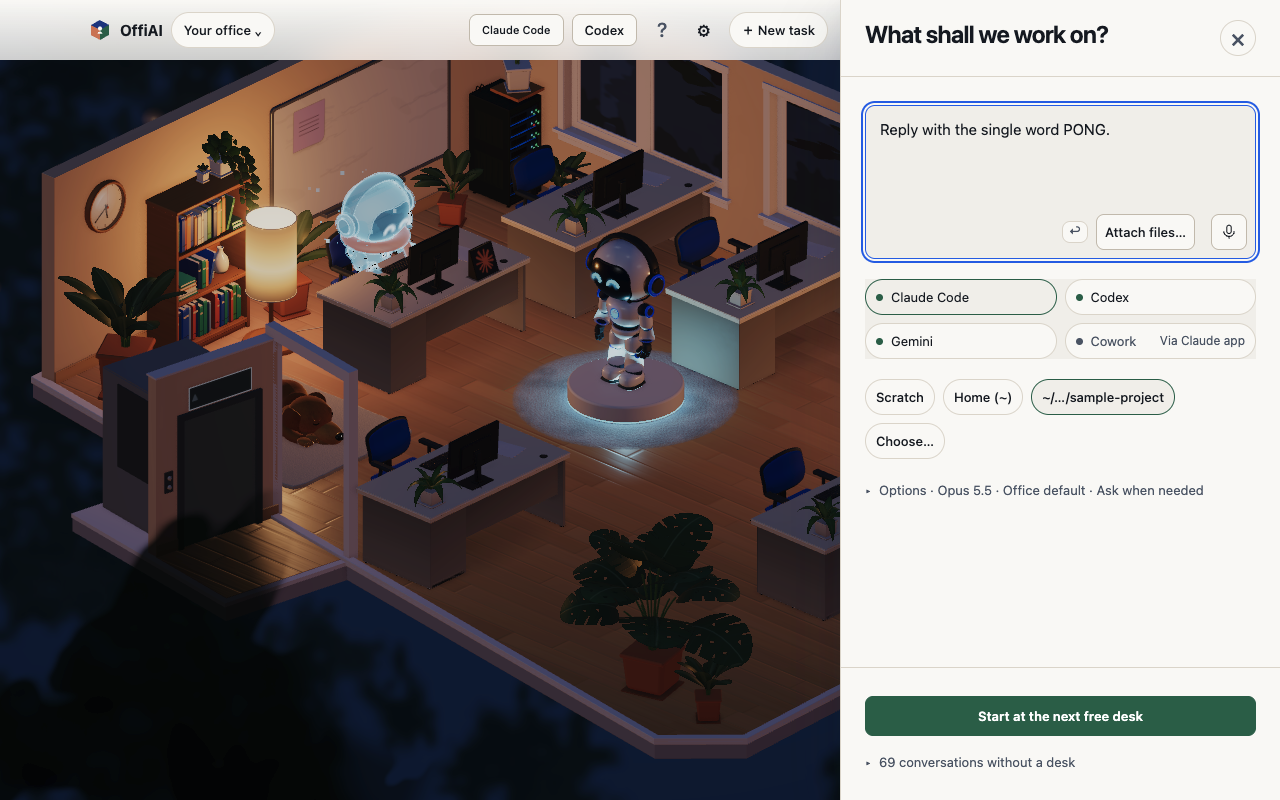
- Reception: pick a working folder, write a brief, choose Claude Code, Codex or Gemini, and the session starts at a free desk.
- Desks: one session per desk, each with its own conversation.
- Holograms: there is one robot; while it is elsewhere, every desk whose session is working or waiting for you shows a hologram.
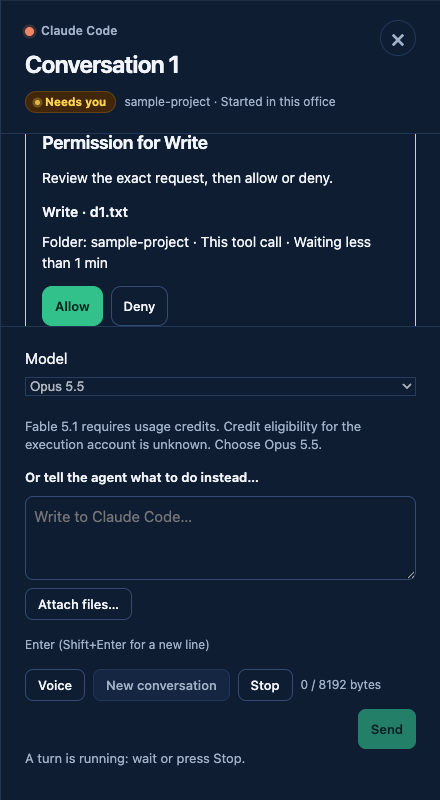
- Approvals: permission requests from Claude Code work you started in OffiAI wait there for Allow or Deny.
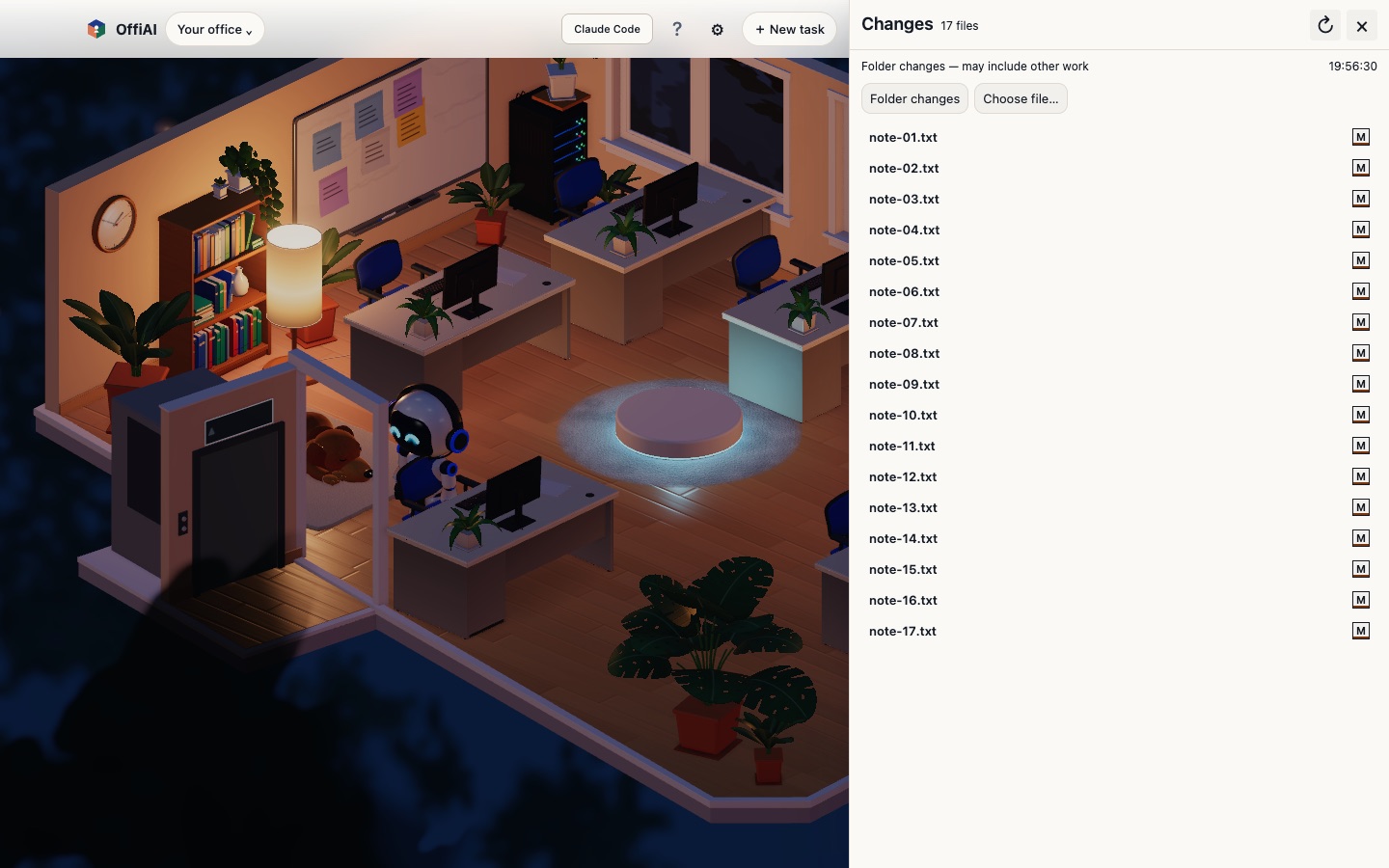
- Review: a finished job ends as Delivered and keeps its desk until you mark it done. A Changes view lists the files Claude Code edited and, when you ask, the current changes in the folder’s Git repository.
The one-minute film: OffiAI in one minute on YouTube.
How it works, per tool
Every integration talks to the app on your own Mac. The Codex and Gemini hooks and the Cowork plugin reach it over 127.0.0.1, with a port and a random token from a pairing file only your user can read; OffiAI writes a new one each time it starts. The optional Claude Code approval hook described below uses a private socket file instead.
Claude Code: no plugin, no hooks by default
To find sessions, OffiAI runs claude agents --json and claude auth status, and reads the transcripts under ~/.claude/projects (or under an absolute CLAUDE_CONFIG_DIR). Reading sessions does not open Claude’s credential or settings files. Desk state follows the transcript: a prompt shows Thinking, a tool call shows the tool in use, the end of a turn shows Idle.
A task started at Reception launches claude in print mode in your folder, with stream-JSON input and output and --permission-prompt-tool stdio; OffiAI writes your brief to its input. Follow-ups resume the same session, also after an app restart. A message to a terminal-started session resumes it in a separate process.
With that flag, every request that your Claude Code permission settings and the task’s permission mode (Reception → Options) would ask about comes back over the pipe. Approvals shows the tool, its description and the command as written, with only credential-shaped strings masked. Allow runs the tool with its original input; Deny answers “Denied by the user in OffiAI.”
A session started in a terminal creates no requests in OffiAI unless you send it a message from OffiAI (that turn runs in OffiAI’s own process) or opt in. The setting “Approve terminal sessions in OffiAI” is off by default; turning it on shows you the file path and the exact entry, then adds one PermissionRequest hook to Claude Code’s user settings. Turning it off removes only that entry.
Codex CLI: six hooks plus read-only session files
An installer (node install-codex.mjs) adds six hooks (SessionStart, UserPromptSubmit, PreToolUse, PostToolUse, Stop, SessionEnd) to hooks.json in your Codex home, backs up the old file and keeps your other hooks; Codex asks you to approve them once. The hooks send lifecycle events, fixed labels, a prompt’s word count and a hash of it, and tool names; never prompt text, tool arguments or output. A desk appears with your first prompt, because that is when Codex fires its hooks.
OffiAI also reads the rollout files under ~/.codex/sessions read-only for status, model, token usage and Codex’s latest answer, with secrets masked; it never opens Codex’s auth or config file. A Codex session started in your own terminal is read-only in OffiAI.
When Reception starts Codex, OffiAI runs it in a tmux session of its own (tmux ships inside the app), pastes your brief and reads the screen to tell when Codex is ready. Answers appear in the desk’s Talk drawer and you reply there; “Open in Terminal” attaches you to the same session.
Gemini (Antigravity CLI): read-only, nothing to install
OffiAI opens ~/.gemini/antigravity-cli/conversation_summaries.db read-only and lists the file names (not contents) in its presence/ folder to see which conversations are running. It never runs agy to observe. Optional hooks add fixed lifecycle labels. Reception starts Gemini like Codex, in its own tmux session, after asking you to trust the folder.
Cowork: a plugin, and Claude decides what to report
Cowork has no local transcripts to read. The OffiAI plugin (one file, or the offiai/claude-plugins marketplace on GitHub) adds a small local MCP server. Claude calls its offiai_event tool with a conversation label and a one-line summary; the bridge passes that, plus start, a heartbeat every 60 seconds and end, to OffiAI. A Cowork desk shows what Claude chooses to report, never a transcript.
“New Cowork task” opens the Claude app through a claude:// link with your text filled in and a “(from OffiAI)” line; nothing is sent until you press send in Claude. A separate “Send now” button, which needs macOS Accessibility permission, types and sends your message into the desk’s conversation in the running Claude app. Claude is instructed to send a copy of its answer, at most 2,000 characters, back to the desk.
What it does not do
- It runs on macOS with Apple silicon only. Android and iOS apps are in development.
- OffiAI’s Allow and Deny answer Claude Code requests: work started from OffiAI, terminal sessions you message from OffiAI, and terminal sessions with the opt-in hook. Cowork requests are answered in the Claude app. Codex and Gemini ask in their own terminal; on a desk started from Reception, “Open in Terminal” takes you there.
- The Claude Code and Codex integrations support a specific range of CLI versions; sessions of other versions are not shown. The install pages list them (Claude Code, Codex); Cowork has its own page (Cowork).
- Sessions started outside OffiAI are hidden by default; one office switch shows them.
- It runs no model of its own; each agent keeps its own account and provider.
- The app is in English, Spanish and German.
- It is a public beta; the changelog also lists what our own checks found still broken.
Privacy model
No account, no analytics, and no OffiAI server receives your sessions, prompts, answers or files, apart from what a problem report you choose to send contains. Before agent text reaches a desk, OffiAI tries to mask credentials, e-mail addresses and local paths; that is best effort, not a guarantee.
The network connections the app itself makes, and when:
- Send feedback: only when you press Send, to offiai.app (kept and retried later if you are offline). The report holds your note, two screenshots (the selected area and the window), recent actions, the app log and state, and a random install ID created on your Mac. The desks’ conversation log is left out, but the screenshots show whatever is on screen at that moment.
- Installing or updating Claude Code from the app: on your click, from Anthropic’s download server.
- Installing Codex from the app: on your click; npm fetches the Codex package, and Node.js comes from nodejs.org if no runtime is available.
- Signing in Claude Code or Codex from the app: on your click, the agent’s own sign-in runs and opens the provider’s sign-in page in your browser.
- Robot ideas: only when you ask for ideas or an outfit (or turn on Morning ideas), OffiAI runs your own Claude Code once, without tools, in a private folder. The request carries up to 20 masked session titles from the last 7 days with their state, and goes to Anthropic under your Claude account.
- Library questions: when you ask one, OffiAI runs your own Claude Code in a private folder, with any sources you added.
- The network check in the office: when you open it or press Check now, a DNS lookup and one HTTPS HEAD request each to the Anthropic, OpenAI and Google API hosts.
- Remote access to your office from another device on your network is off until you turn it on. Opening another office from this Mac, or an SSH tunnel you set up under Advanced, connects only to addresses you entered.
OffiAI does not check for its own updates. Your agents still talk to their own providers; that traffic is theirs. The full statement per integration: offiai.app/app-data. What happens to problem reports: privacy policy, section 7.
Try it
Download the notarised DMG from the release page and follow the install page for the agents you use.
The question we would most like answered: when you run several agent sessions at once, which state do you most need to notice without looking (waiting for approval, finished, or stuck), and how should it reach you? Write to preview@offiai.app.
This article was written with AI assistance.
Want to try it? Join the preview.