
How to see all Claude Code sessions at once on your Mac
Run three Claude Code sessions in three terminals and you have three windows to check. OffiAI, a free Mac app, puts every working Claude Code session at its own desk in one office window, so you see at a glance which session is working, which one finished and which one is waiting for you.
The short answer
- Install OffiAI on a Mac with Apple silicon. Download it from the release page and move it to Applications.
- Keep starting Claude Code the way you do now:
claudein a terminal, one per task. Claude Code must be installed and signed in. - Open OffiAI. Each session that is working takes a desk. There is no plugin and no hook to install: OffiAI reads the session files Claude Code already keeps in its folder under
~/.claudeon your Mac.
You keep using Claude Code as before; OffiAI writes to Claude Code only when you send a message or a task from OffiAI. The Claude Code setup guide has the details.
A few terms used below: a desk is one session with its own conversation. Reception is where you start new work from the app. Needs you means a session is waiting for your answer, and Delivered means its turn has finished.
Three sessions in one office
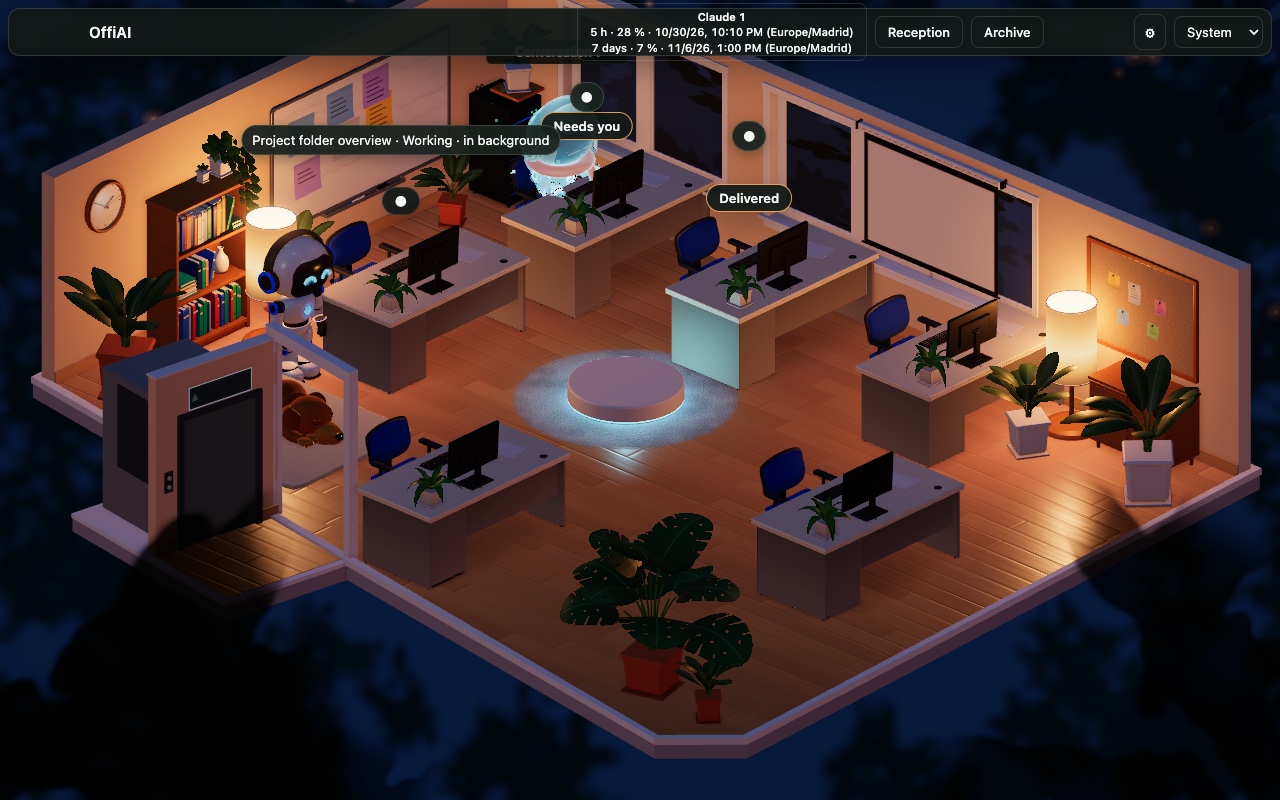
For the picture above we made three demo folders and gave each session a small task. The first session was started in a terminal: it listed the files in its folder, then ran a command that waits a minute. Claude Code ran that command in the background, so the desk label reads “Working · in background”. The other two were started from Reception, the round pad in the middle of the office, where you choose a folder, write the task and OffiAI starts Claude Code there at a free desk. One was asked to create an empty file and stopped to ask permission. The other wrote a short story and finished.
You can mix both ways: a session you start in a terminal and a session you start in OffiAI each get their own desk.
Reading a desk at a glance
A desk’s status follows the session’s transcript as Claude Code writes it. Labels and chips above the desks show a session’s title or state; click a desk to open its panel.
- Working. Claude Code is thinking or using a tool. Reading files, running a command and editing all count as work.
- Needs you. The session is waiting for your answer. The desk shows a “Needs you” chip, and clicking it opens that desk’s Talk drawer.
- Delivered. The turn has finished. Delivered means the agent is done, not that you accepted the work: marking it reviewed and done stays your decision.
A session that is still open in its terminal keeps its desk while it is idle. When a session ends, its desk is freed after 10 minutes.
The pictures show the classic office, which is the default in the current preview. With the new interface switched on in Settings › Appearance, each task desk gets a card with its title and a status chip instead, and a delivered task you have not read yet says “Ready for review”.
Open the session that needs you
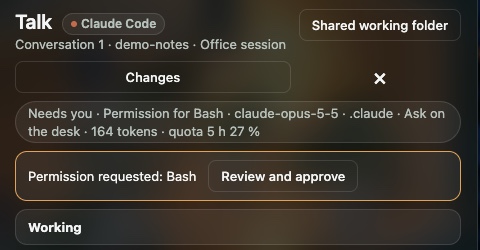
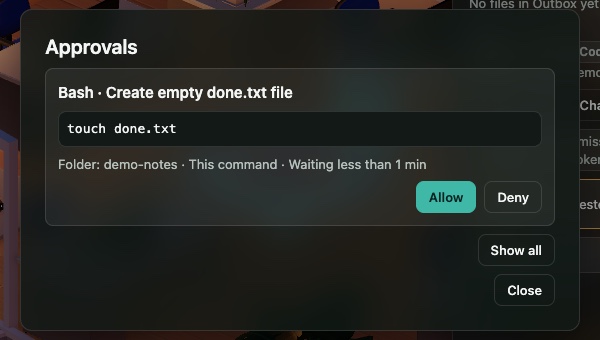
In the desk’s panel, the Talk heading carries a badge that says which agent the desk belongs to, here Claude Code, and a status line such as “Needs you · Permission for Bash”. For Claude Code work you start from OffiAI, permission requests come to OffiAI instead of waiting in a terminal. The Talk drawer says “Permission requested” and offers “Review and approve”, which opens Approvals on that session. Approvals shows the command as written, with Allow and Deny. A request appears only when your Claude Code settings would ask anyway.
Sessions you start in a terminal keep asking in that terminal by default. Approvals you can answer from one place explains the optional setting for terminal sessions and its limits.
How many sessions fit
“All” has a ceiling. The standard office has six desks, and no office has more than 12. A working session takes the lowest free desk. When every desk is held, new work takes the desk that has been idle longest, then one whose session has ended. If no desk can be given up, for example because every desk is working or holds a result you have not reviewed yet, the new conversation waits, and the office says so: “2 conversations are waiting for a free desk.”
So with more sessions running than desks, you see one session per desk and a count of the ones waiting. Today’s preview includes all of the office’s desks; the desk counts of the planned plans may still change.
Find a session after the work ends
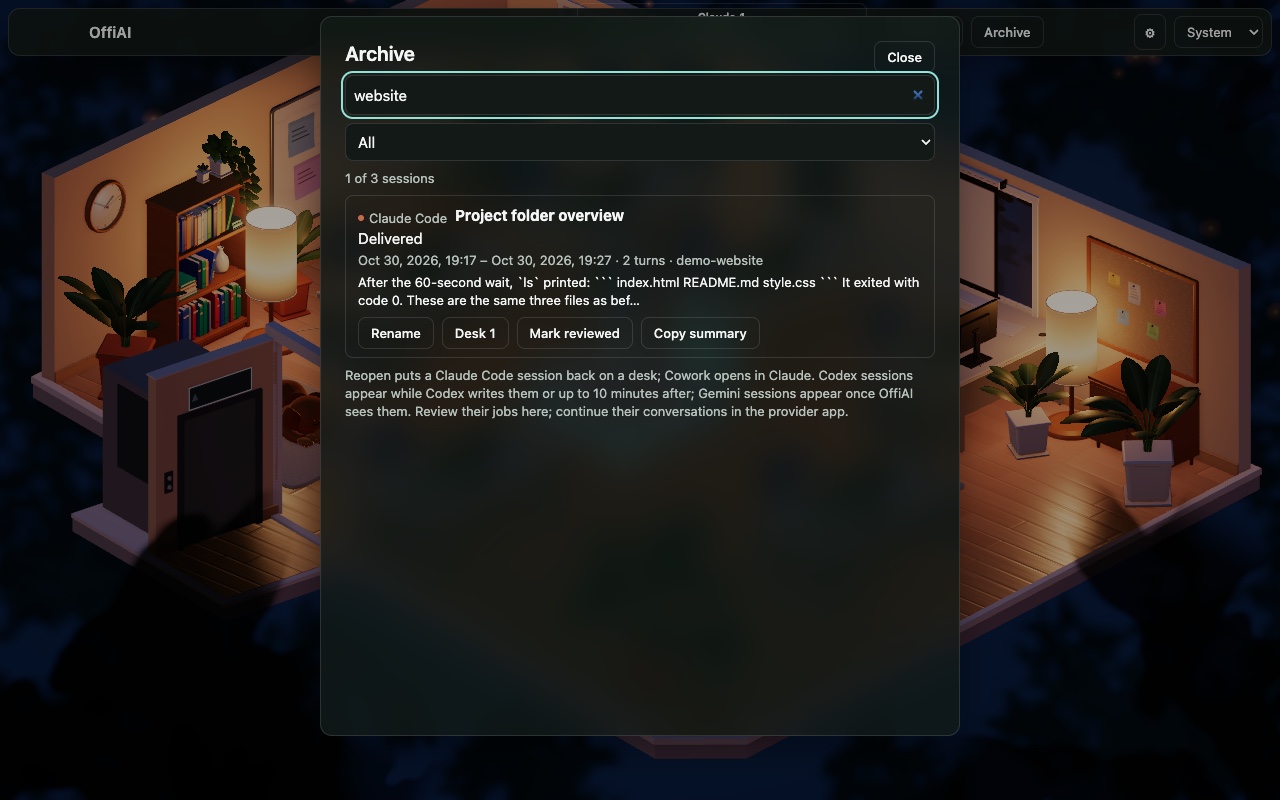
Click “Archive” in the top bar. It lists the sessions OffiAI has seen, newest first, and the search field filters as you type. Search covers each session’s title, a short excerpt of its last answer, the agent name and the folder label. It is not a search through every line of every transcript. A Claude Code session that no longer has a desk can be reopened onto a free one, and nothing runs until you send its next prompt. While a session still holds a desk, its entry names that desk instead (“Desk 1” in the picture below). Why every agent session should be searchable covers the archive in full.
What you need, and the limits
- A Mac with Apple silicon. OffiAI is a free public preview and changes often; every build is in the changelog.
- Claude Code installed and signed in: version 2.1.272 or newer, below 2.2, to see sessions, and 2.1.302 or newer to start or continue work from OffiAI. Other versions show no sessions, and Claude Code 2.2 is not supported yet. Check yours with
claude --version. - If Claude Code is signed out, no sessions are listed. Sign in again and they come back.
- Six desks in the standard office, never more than 12, as above.
OffiAI reads these files on your Mac. It does not send your sessions, prompts, transcripts or file contents anywhere, and it has no server that would receive them. Our data statement is at offiai.app/app-data.
Try it
Download OffiAI from the release page, start two or three Claude Code sessions as you normally would, and open the app.
In pictures
Want to try it? Join the preview.